How to Add Google Reviews to Your Website (Widgets & Plugins)

Your reputation is your best sales tool, but it only works if people actually see it.
Most potential customers will visit your website before they ever step foot in your store or book a service. If they have to leave your site to check your reputation on Google Maps, you risk losing them to a competitor or a distraction.
The solution is simple: bring the reviews to them.
Embedding Google reviews directly on your website keeps visitors engaged, builds immediate trust, and helps convert traffic into paying customers. This guide covers the best free and paid ways to display your hard-earned 5-star ratings on any website platform.
(For a deep dive into building a 5-star presence, read our pillar page: Google Review Management: The Complete Guide for Your Brand (2026))
Why You Should Display Google Reviews on Your Website

You might think a “Testimonials” page is enough, but modern consumers are skeptical. They know you hand-picked those quotes. Google reviews, on the other hand, are seen as unfiltered and authentic.
- Social Proof: 88% of consumers trust online reviews as much as personal recommendations. Seeing a live feed of happy customers validates their decision to choose you.
- SEO Boost: Search engines love fresh content. A review widget automatically updates your site with new keywords and user-generated text, signaling to Google that your business is active.
- Trust & Transparency: Showing your real rating—even if it’s not perfect—proves you have nothing to hide.
Method 1: The “Official” Free Way (Google Maps Embed)
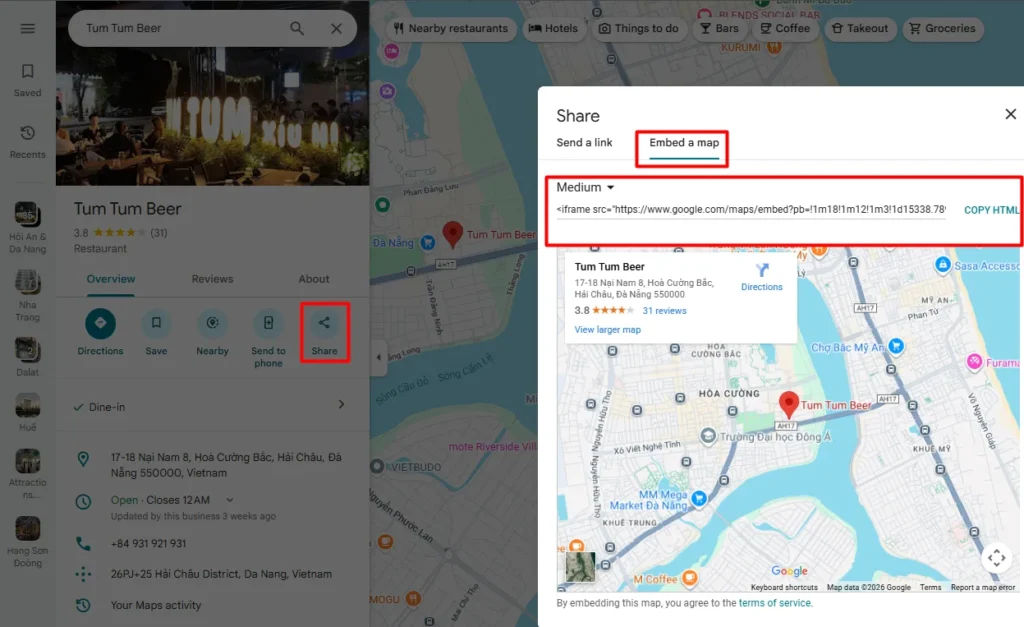
If you don’t want to install plugins or sign up for third-party tools, you can use Google’s native embed feature. This is the simplest method, though it has limited design options. It displays your business location on a map along with your rating summary.
Best for: Contact pages and footers.
How to do it:
- Go to Google Maps and search for your business name.
- Click the Share button (usually an icon that looks like three connected dots or an arrow).
- Select the tab labeled “Embed a map.”
- Copy the HTML code provided.
- Paste this code into the HTML/Code block of your website.
Note: This will show a map with your star rating, but it won’t display a list of written reviews.
Method 2: Adding Google Reviews to WordPress (Best Free Plugins)
If your site runs on WordPress, you are in luck. There are excellent free plugins that handle everything for you. Our top recommendation for 2026 is the “Widgets for Google Reviews” plugin by Trustindex.
How to do it:
- Log in to your WordPress dashboard.
- Go to Plugins > Add New and search for “Widgets for Google Reviews.”
- Install and activate the plugin.
- Connect your Business: You will need your Google Place ID. (Don’t know it? Check our guide on how to find your Google Business Profile ID).
- Choose a Layout: Pick a style that fits your site (Sliders, Grid, or List view).
- Copy the Shortcode: The plugin will give you a small code (e.g., [google-reviews-widget]).
- Paste that shortcode onto any page where you want the reviews to appear.
Method 3: Using Widgets for Wix, Squarespace, and Shopify
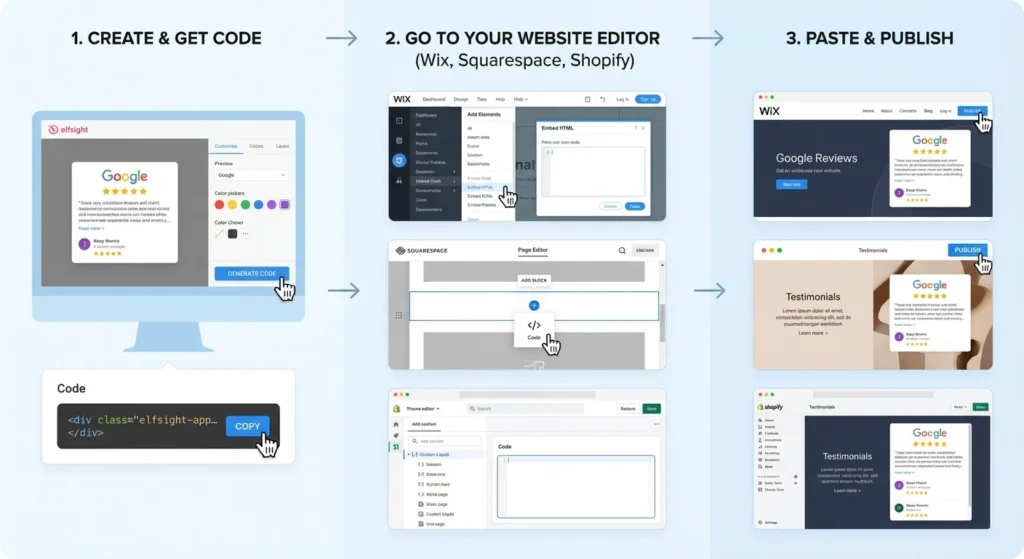
Website builders like Wix and Squarespace don’t use “plugins” in the same way WordPress does. For these platforms, you will use an HTML Embed Widget. Tools like Elfsight or specific “Review Widget” apps in the Shopify App Store make this easy.
Looking For Google Reviews? Claim your Discount Below
 8,492 people used this service in the past 7 days

General Steps for Any Builder:
- Create the Widget: Use a third-party tool (like Elfsight) to design your review feed. You can customize colors, fonts, and how many reviews to show.
- Get the Code: Once you save your design, the tool will give you a snippet of HTML code.
- Go to Your Website Editor:
- Wix: Add Element > Embed Code > Embed HTML.
- Squarespace: Add Block > Code.
- Shopify: Add Section > Custom Liquid (or use a dedicated app).
- Paste and Publish: Paste your code snippet and save the page. Your reviews will now update automatically.
Where to Place Your Review Widget for Best Results
Once you know how to add Google reviews to your website, the next question is where to put them. Placing them randomly won’t give you the conversion boost you are looking for. You need to be strategic.
- The Homepage Hero: Placing a small “Rated 5 Stars on Google” badge near your main headline is powerful. It immediately tells visitors they are in the right place before they even scroll down.
- Near Call-to-Action (CTA) Buttons: If you have a “Book Now” or “Buy” button, place a review slider right underneath it. This reduces anxiety at the exact moment a customer is deciding to click. It acts as a final nudge of reassurance.
- The Dedicated “Wall of Love”: Create a specific page titled “Reviews” or “What Clients Say.” Use a grid layout here to show a large volume of feedback. This is great for SEO because it creates a keyword-rich page that ranks for search terms like “[Your Company Name] reviews.”
- The Checkout Page: Abandoned carts often happen because of last-minute doubts. A simple, static review snippet on the checkout page can remind the buyer why they chose you, keeping them focused on completing the purchase.
Customizing Your Feed: Filtering and Design Tips

A messy or broken widget looks unprofessional. When you embed Google reviews, you should customize the feed to match your brand’s look and feel.
- Filtering Negative Reviews: Most premium widgets allow you to set a “Minimum Rating Filter.” For example, you can choose to only display 4 and 5-star reviews. While this makes your site look better, be careful not to make it look too perfect. A feed with 100% glowing praise can sometimes look suspicious. However, filtering out spammy 1-star reviews is a smart move to keep your website professional.
- Choosing the Right Layout:
- Slider/Carousel: Best for homepages where space is tight. It cycles through reviews one by one.
- Grid: Best for dedicated review pages. It shows many reviews at once, creating a “wall” of social proof.
- Badge: Best for footers or sidebars. It’s a small graphic that shows your aggregate score (e.g., “4.8/5”) without taking up much room.
- Slider/Carousel: Best for homepages where space is tight. It cycles through reviews one by one.
- Visual Consistency: Ensure the widget fonts and colors match your website. If your site is dark, use a “Dark Mode” setting for the reviews so they don’t look like a bright white sticker pasted on a black background.
Boost Your Review Count Before You Embed
Here is a common problem: A review widget looks fantastic if you have 50+ glowing reviews. It looks awkward if you only have two.
If your widget looks empty, it might actually hurt your credibility by making your business look new or unpopular. Before you put a widget on your homepage, you want to ensure it is populated with plenty of positive feedback.
If you need to populate your profile quickly to make your widget look impressive, you can buy Google reviews to kickstart your social proof. This helps fill up the empty space so your website looks established from day one.
Conclusion
Your customers are already talking about you—don’t hide their praise on a third-party site. By embedding Google reviews on your website, you turn your traffic into trust and your trust into sales.
Whether you use a simple map embed or a fancy slider plugin, the goal is transparency. Just make sure your feed stays fresh. A widget showing reviews from three years ago implies you haven’t had a happy customer since then.
(Need to generate more fresh feedback? Read our strategies on how to get more Google reviews)
Frequently Asked Questions
Should I add Google reviews to my website?
Yes. It keeps users on your site longer and builds trust instantly. If a customer has to leave your site to look you up, you might lose them to a competitor’s ad.
How to display reviews on a website?
The easiest way is to use a dedicated plugin (if you use WordPress) or an HTML embed widget (for Wix, Squarespace, etc.). These tools automatically pull your latest reviews from Google so you don’t have to update them manually.
Is setting up Google reviews free?
Yes. The Google Maps embed method is completely free. For WordPress, there are many free plugins like “Widgets for Google Reviews” that offer great features at no cost.
Is it legal to put Google reviews on my website?
Yes, as long as you use compliant tools. Using an API or widget that properly attributes Google (showing the G logo) is perfectly legal. However, you should avoid manually copying and pasting review text without credit, as this can violate copyright or Terms of Service.