How to Edit a Google Review: A Quick Guide for Customers
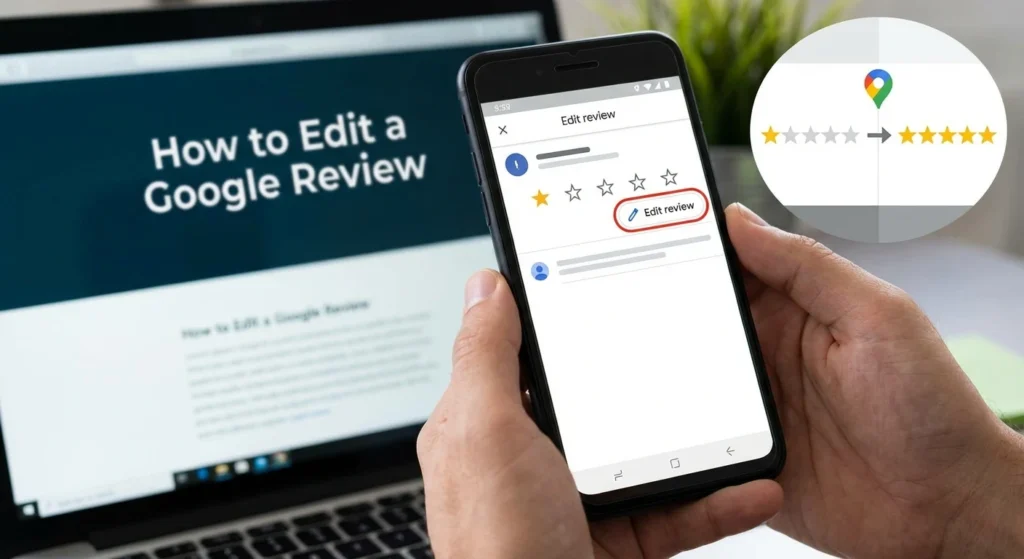
Have you ever left a 1-star review in the heat of the moment, only to have the manager call you an hour later to apologize and fix the issue? Or maybe you left a glowing 5-star rating, but then the product broke a week later? And you wonder how to edit a Google review?
Opinions change, and sometimes the feedback you left a month ago is no longer accurate.
The good news is that your words are not set in stone.
Google allows you to edit or completely delete your review at any time. Whether you want to fix a typo, update your star rating, or remove a comment entirely, it takes less than 30 seconds to do. This guide will show you exactly how to do it on both your phone and computer.
(For a deeper look at how the review system works, read our pillar guide: Google Review Management: The Complete Guide for Your Brand (2026))
Table of Contents
Can You Edit a Google Review? (The Rules)
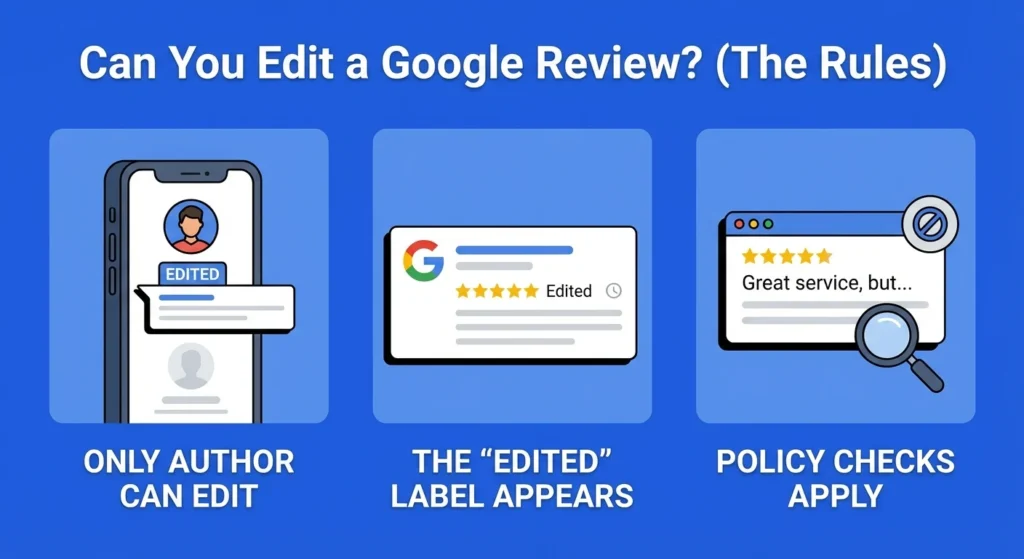
Yes, you can edit a Google review whenever you want, and you can do it as many times as you like.
However, there are a few rules to keep in mind regarding who controls the content:
- Only the Author Can Edit: The business owner cannot change a single word of your review. Even if they hate it, they cannot edit it. Only the Google account that posted the review has the power to change it.
- The “Edited” Label: Transparency is key for Google. If you change your review, a small label saying “Edited” will appear next to your rating. Users can see that you changed it, but they cannot see the original version (the history is hidden).
- Policy Checks: If you edit a review and add new text that violates Google’s policies (like adding a curse word or a link), the new version might be removed by Google’s automated filters.
Method 1: How to Edit a Review on Google Maps (Mobile App)
Most people write reviews from their phones while they are still at the business or sitting in their car. The easiest way to manage your past feedback is through the Google Maps app.
Here is the step-by-step process for iPhone and Android:
- Open the Google Maps app. Ensure you are signed into the same Google account you used to write the review.
- Tap your Profile Picture. It is located in the top right corner of the search bar.
- Select “Your Profile” (sometimes labeled “Your Contributions”).
- Scroll down to “Reviews”. You will see a list of every review you have ever written.
- Find the review you want to change.
- Tap the three dots (…) next to the review.
- Select “Edit review.”
- Change the star rating or the text, and hit Post.
(Source: Google Maps Help – Write & Edit Reviews)
Method 2: How to Edit a Review on Desktop
If you wrote a long, detailed review, it might be easier to edit it on a computer keyboard.
- Go to Google Maps in your browser.
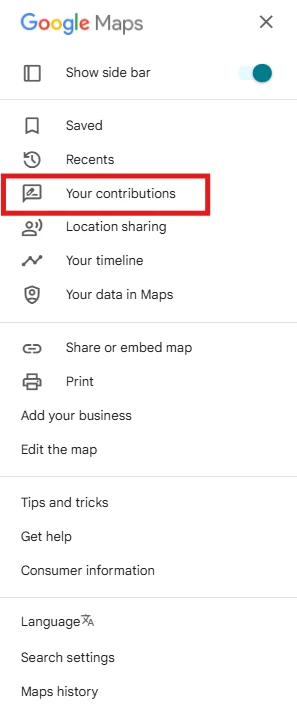
- Click the Menu icon (the three horizontal lines) in the top left corner.
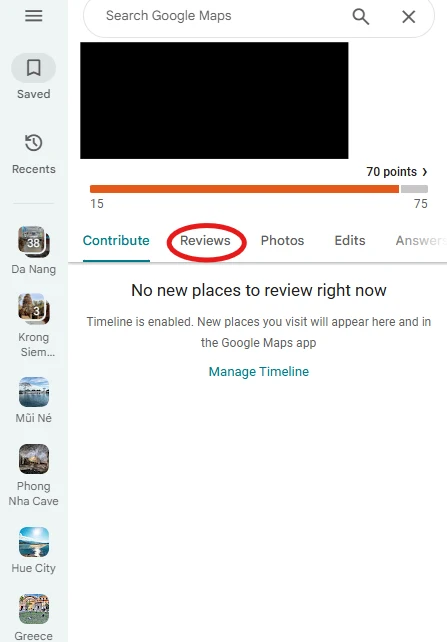
- Click “Your Contributions.”
- Click the tab labeled “Reviews.”
- Find the review in the list.
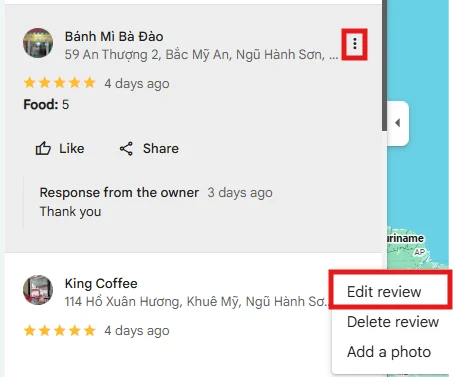
- Click the three dots next to the date.
- Select “Edit review.”
- Make your changes and click Post.
The update happens instantly. Anyone looking at the business profile will see your new text immediately.
How to Delete a Google Review Completely
Sometimes, editing isn’t enough. Maybe you reviewed the wrong business by mistake, or maybe you just don’t want your name associated with that company anymore.
Can you delete google reviews you wrote? Yes.
The process is almost identical to editing:
- Navigate to your reviews list (via “Your Profile” on mobile or “Your Contributions” on desktop).
- Click the three dots (…) next to the review.
- Instead of “Edit,” select “Delete review.”
- Confirm your choice.
Warning: Once you delete a review, it is gone forever. You cannot “undo” this action. If you want to review the business again, you will have to write a brand new one.
Why You Should Update Your Review (Etiquette)
Why bother editing a review? Why not just leave it?
The review system relies on honesty. If a business messes up, they deserve a bad rating. But if they went out of their way to fix the problem, leaving a 1-star review up forever can be unfair.
Looking For Google Reviews? Claim your Discount Below
 8,492 people used this service in the past 7 days

Many business owners work hard to resolve customer complaints. If you complained about a cold meal and the owner invited you back for a free, hot dinner that was delicious, updating your review to mention their customer service helps keep the ecosystem accurate.
It also prevents accidental misinformation. Sometimes users review the “Downtown Pizza” in Ohio when they meant to review the “Downtown Pizza” in Texas.
If you realize you made a mistake, deleting it saves a small business from an unfair penalty.
(Read more about how businesses handle false info: How to remove fake Google reviews)
For Business Owners: What If You Want to Edit a Customer’s Review?

If you are a business owner reading this, you are probably looking for a way to fix a negative comment.
Here is the hard truth: You cannot edit a customer’s review.
You also cannot delete it. However, you can influence the customer to edit it themselves. The best strategy is to reply to the review professionally, apologize, and offer a solution.
We see it happen all the time: a customer feels heard, their anger fades, and they voluntarily change their 1-star rant to a 4-star “Thank you.”
(Check our templates here: How to respond to negative Google reviews)
If the customer refuses to change it and the review is hurting your score, your best defense is offense. You need to bury the negative feedback with fresh positive feedback.
Many businesses choose to buy Google reviews to dilute the impact of a bad rating and restore their overall average.
Conclusion
Google reviews are fluid, not fixed. Whether you are a customer correcting a mistake or a business owner hoping for a second chance, knowing how to edit a Google review is essential for keeping the system fair and helpful.
It takes less than a minute to check your past contributions. If you have left a review that no longer reflects your opinion, take a moment to update it today.
Frequently Asked Questions
Can I edit a Google review I posted?
Yes. You can edit the star rating, the text, and the photos attached to your review at any time through Google Maps.
Can you delete a review after posting it?
Yes. You can permanently remove your review by selecting “Delete review” from the options menu next to your post.
Can you tell if a Google review has been edited?
Yes. Google displays a small “Edited” label next to the date of the review. However, readers cannot see the previous versions of the text.
Does deleting a Google review notify the user?
No. Google does not send a notification to the business owner when you edit or delete your review. However, if they monitor their reviews closely, they will notice the change in their total count or star rating.