How to Get Google Review Link: The Step-by-Step Guide (2026)

If you want to skyrocket your ratings, learning how to get Google review link is the single most important step you can take.
When you simply ask a customer to “leave a review” without sending a link, you force them to search for your business manually, which often leads to them giving up.
A direct link removes this friction by taking them straight to the 5-star rating box. This guide covers the step-by-step process to generate, shorten, and share your link to boost your reputation instantly.
(For a complete strategy on building your reputation, read our pillar guide: Google Review Management: The Complete Guide for Your Brand (2026))
Table of Contents
Why Your Review Link Is Your Most Valuable Asset
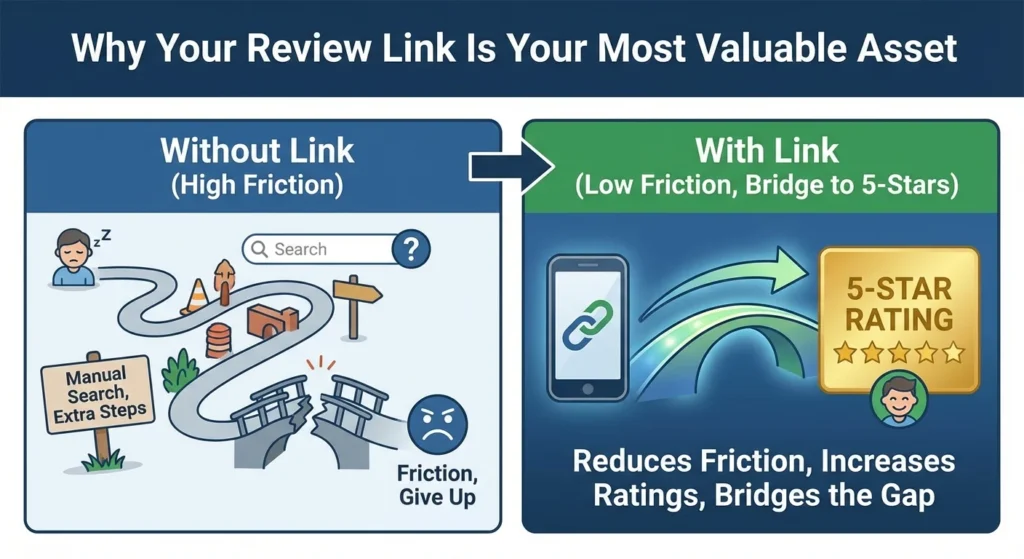
Before we get into the technical steps, it is important to understand why this link matters so much.
In the world of digital marketing, we talk a lot about “friction.” Friction is anything that slows a user down.
Every extra click, every extra second of loading time, and every extra step required to complete an action is a chance for the user to give up.
When you ask for a review without providing a link, you are asking the customer to do work. You are asking them to navigate the internet to find you. When you send a direct link, you are doing the work for them.
According to data from Google’s own support resources, businesses that actively share their profile URL are significantly more likely to receive steady feedback. It bridges the gap between a happy customer and a public 5-star rating.
Method 1: The Easiest Way (Via Google Search on Desktop)
If you are sitting at your computer, this is the standard way to grab your link. In 2026, Google has moved almost all management features directly onto the Google Search results page, meaning you don’t need to log into a separate “dashboard” website anymore.
Here is the step-by-step process:
- Log in to your Google Account: Make sure you are using the email address associated with your Google Business Profile.
- Search for your business: Open a new tab and type your exact business name into Google. You can also simply type “my business.”
- Locate the Management Panel: You should see a dashboard appear at the top of the search results (or on the right-hand side). It will show options like “Edit profile,” “Read reviews,” and “Messages.”
- Find the “Ask for reviews” button: Look for an icon that says “Ask for reviews” (sometimes labeled “Get more reviews”). It usually looks like a speech bubble with a star inside.
- Copy the link: A pop-up window will appear with a special URL. It will look something like g.page/r/YourBusinessName/review. Click the button to copy it.
Pro Tip: This link is technically a “short link” generated by Google. It is safe, branded, and ready to send immediately.
Method 2: Finding the Link on the Google Maps App (Mobile)
You are often face-to-face with a client when the “ask” happens. You don’t have your laptop, but you do have your phone.
Knowing how to share your Google review link on your phone is a crucial skill for contractors, real estate agents, and service providers.
Here is how to get the link in seconds using the Google Maps app:
- Open Google Maps: Ensure you are signed in to the account that manages the business.
- Tap your Profile Picture: In the top right corner of the search bar, tap your face (or initial).
- Select “Your Business Profiles”: This will open a list of the businesses you manage. Tap the one you want to work on.
- Scroll to the “Get more reviews” section: You might need to scroll down a bit on the main profile overview.
- Tap “Share profile”: You will see a button that allows you to share the link directly via text, email, or social media, or simply “Copy” it to your clipboard.
Why this method is great:
It allows you to text the link to the customer while you are still standing in front of them. You can say, “I just sent you a link via text, if you have a second to click it later, I’d really appreciate it.”
Method 3: The “Direct Pop-Up” Link (Using Place ID)
The standard links from Method 1 and 2 are good, but they sometimes just drop the user on your profile page. The user still has to click “Reviews” and then “Write a review.”
If you want to be a pro, you want the Place ID link.
This is a special URL that triggers the review box to pop up automatically as soon as the page loads.
It forces the browser to open the 5-star selection window immediately. This saves the user a click and reduces confusion.
How to create it:
- Find your Place ID: Every business on Google Maps has a unique ID code that looks like a long string of letters and numbers. You can find this using Google’s Place ID Finder tool. (Need help finding it? Read our guide on how to find your Google Business Profile ID).
- Copy the Base URL: Google uses a specific URL structure for writing reviews: https://search.google.com/local/writereview?placeid=
- Combine them: Paste your Place ID at the end of that URL.
Example: If your Place ID is ChIJ3S-JXmauEmsRu81tJhKiPhU, your new magic link is: https://search.google.com/local/writereview?placeid=ChIJ3S-JXmauEmsRu81tJhKiPhU
When a customer clicks this, the rating window opens instantly.
How to Create a Short URL (So It Looks Professional)
The Place ID link we just created is very long and ugly. If you send that in a text message, it might look like a virus or a scam. Even the standard g.page link can sometimes look generic.
To increase trust and click-through rates, you should clean up the link.
Option 1: Use a URL Shortener (Bitly) Tools like Bitly allow you to turn a long link into something custom, like bit.ly/Review[YourBusiness]. This is easy to read and looks professional in an Instagram bio or an email signature.
Option 2: Use a Redirection Domain If you own your website (e.g., www.yourbusiness.com), you can ask your web developer to create a redirect.
You could set up www.yourbusiness.com/review so that it automatically redirects to your Google review link.
This is the most professional option because the customer trusts your domain name implicitly.
5 Smart Ways to Share Your Link
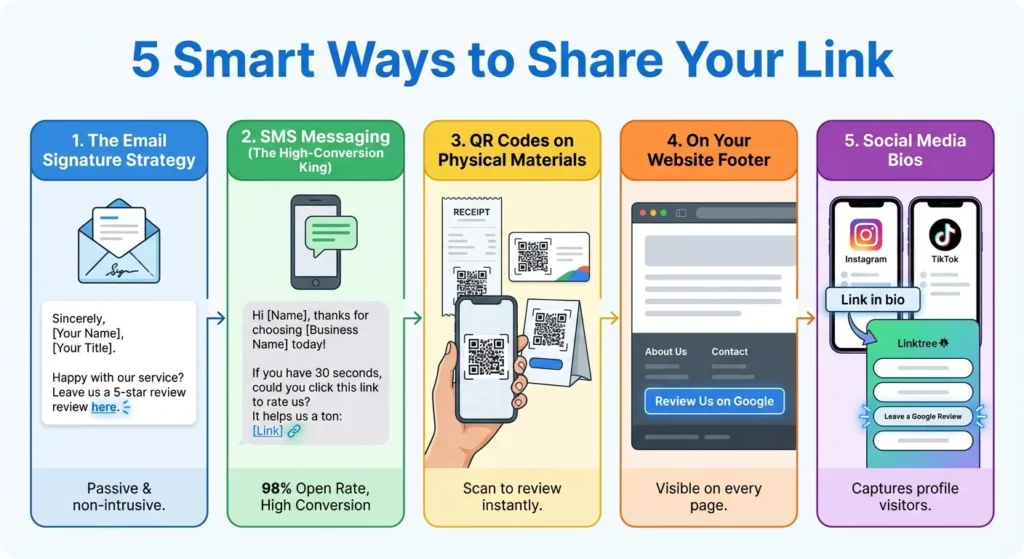
Now that you have the link, what do you do with it? Having the link doesn’t get you reviews; sharing it strategically does. Here are the five most effective places to put your new link.
Looking For Google Reviews? Claim your Discount Below
 8,492 people used this service in the past 7 days

The Email Signature Strategy
Think about how many emails you send a day. 20? 50? Every single one of those is an opportunity.
Add a permanent line to your email signature that says: “Happy with our service? Leave us a 5-star review here.”
Hyperlink the word “here” with your review link. It is passive, non-intrusive, and captures people when they are already engaging with you professionally.
SMS Messaging (The High-Conversion King)
Text messages have a 98% open rate, compared to about 20% for email. If you have the customer’s permission to text them, sending the review link via SMS is the most effective method.
Template: “Hi [Name], thanks for choosing [Business Name] today! If you have 30 seconds, could you click this link to rate us? It helps us a ton: [Link]”
QR Codes on Physical Materials
If you run a restaurant, a retail store, or a home service business, digital links are hard to share. You can’t verbally tell someone a URL.
This is where QR codes come in. You can turn your Google review link into a QR code and print it on:
- Receipts
- Business cards
- Table tents
- Stickers on your front door
When a customer scans the code with their phone camera, it opens your review link instantly.
(Learn how to make one in our guide: QR code for Google review: A beginner’s guide)
On Your Website Footer
Don’t make people guess where to leave feedback. Add a clear “Review Us on Google” button in the footer of your website.
Since the footer appears on every page, a user can find it no matter where they are on your site.
Social Media Bios
Instagram and TikTok are becoming search engines. People might find your profile before they find your website.
Use a “Linktree” or similar tool in your bio to hold your important links, and make “Leave a Google Review” one of the top buttons.
Troubleshooting: Why Isn’t My Link Working?
Sometimes, you might click your link and nothing happens, or it sends you to a generic map. Here are a few common reasons why:
- Profile Suspension: If your Google Business Profile has been suspended for policy violations, the review link will stop working. You must resolve the suspension with Google first.
- Disabled Reviews: In rare cases, Google may temporarily disable reviews for a specific business or category if they detect spam attacks.
- Wrong Account: If you are testing the link yourself, make sure you are not trying to review your own business from the owner account. Google often blocks owners from reviewing themselves to prevent fraud.
Need Reviews Faster?
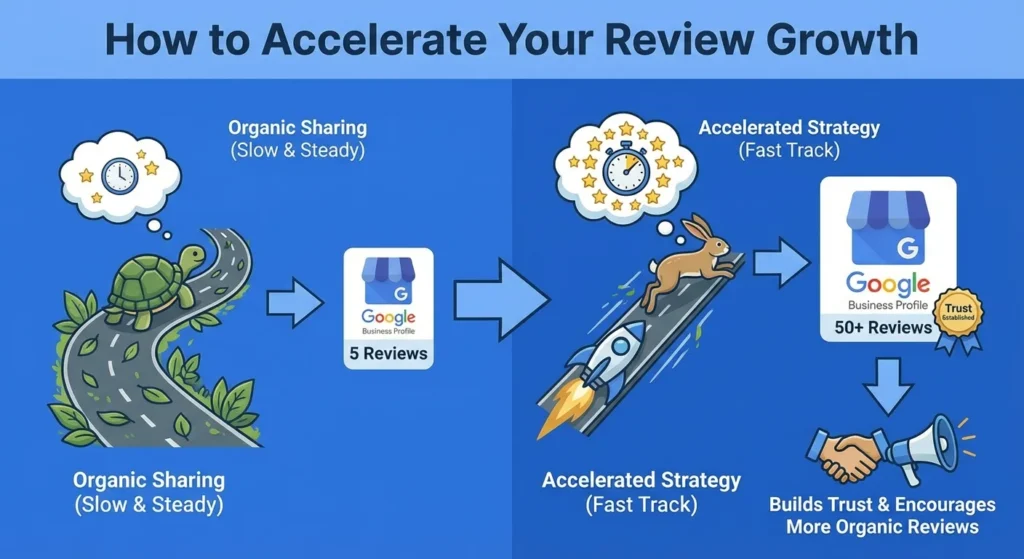
Sharing the link is the organic, “white-hat” way to grow. It is sustainable and necessary. However, it is also slow. Even with a perfect link and great service, only a small percentage of customers actually leave feedback.
If you are a new business, sitting at zero or five reviews can hurt you. Customers trust volume. A profile with 5 reviews looks risky; a profile with 50 reviews looks established.
If you need to populate your profile quickly to build that initial layer of trust, there are ways to accelerate the process. Many businesses choose to buy Google reviews to kickstart their reputation.
This strategy can help you reach a trustworthy number of reviews faster, making your organic link-sharing efforts more effective in the long run. When real customers see others have already reviewed you, they feel more comfortable doing the same.
Conclusion
Getting your Google review link is a small technical step that has a massive impact on your business growth. It bridges the gap between a happy customer and a powerful public testimonial.
By generating the right link – whether it’s the standard short link or the advanced Place ID pop-up – and placing it where your customers can easily find it, you remove the friction that stops people from helping you out.
Your Action Plan for Today:
- Go to Google Search and get your link.
- Save it in the “Notes” app on your phone so it is always ready.
- Add it to your email signature immediately.
The easier you make it, the more you will grow.
(Want to learn more strategies for increasing your rating? Read our guide on how to get more Google reviews)
Frequently Asked Questions
How to generate a Google review link?
The fastest way is to search for your business on Google (while logged in), look for the dashboard, click “Ask for reviews,” and copy the URL provided.
Where do you find your Google review link?
You find it inside your Google Business Profile management dashboard. This dashboard appears directly on Google Search or in the Google Maps app when you are logged into the owner account.
How do I create a short URL for Google reviews?
Google automatically provides a shortened g.page link when you use the “Ask for reviews” button.
If you want a custom one, you can copy that link and paste it into a tool like Bitly to create a custom name (e.g., bit.ly/MyBusinessReview).
How do I share my Google review link on my phone?
Open the Google Maps app, tap your profile picture, select “Your Business Profiles,” and tap the “Share profile” or “Get more reviews” button. This will let you text or email the link directly from your phone.