Step-by-Step: How to Add Photos to Your Google Reviews on Mobile

A five-star rating tells us if you liked a business. A photo tells us why. In this guide, you will see how to add photos to your Google Reviews.
In 2026, the old adage “a picture is worth a thousand words” has never been more true for local businesses. Text reviews are great, but visual proof is undeniable.
According to recent data, 43% of Gen Z and 39% of Millennials specifically seek out photo evidence in reviews before visiting a business.
Whether you are a happy customer wanting to show off a great meal or a business owner guiding a client on how to leave better feedback, this guide covers exactly how to add a photo to a Google review in seconds directly from your phone.
(Collecting these high-quality visual reviews is a powerful accelerator for your broader Social Media Growth, as user-generated content acts as automatic marketing).
Method 1: How to Add Photos to Your Google Reviews While Writing a New Review
The best time to add a photo is right in the moment. Google has made this incredibly easy, but you should avoid using the mobile browser (Chrome/Safari) for this. For the best experience, always use the Google Maps App.
Step 1: Open Google Maps: Launch the app on your iPhone or Android device.
Step 2: Find the Business Type the name of the place you want to review in the search bar.
Step 3: Tap “Reviews” -> “Write a Review.” Scroll down past the photos and address until you see the Reviews tab. Tap the stars to start your rating (e.g., 5 stars).
Step 4: The Camera Icon Once you tap the stars, a text box will appear for you to write your experience. Look for the button that says “Add photos” or the small camera icon, usually located just under or above the text box.
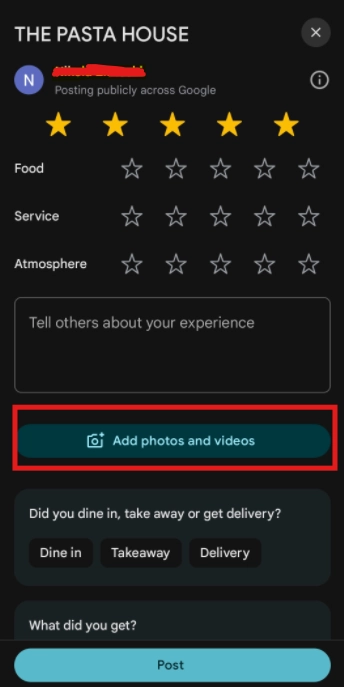
Step 5: Select & Upload
- Tap the button to open your phone’s gallery.
- Pro Tip: You can select multiple photos at once (usually up to 10) to tell a complete story.
- Tap “Post” when you are finished.
According to Google Maps Help, you can add photos directly from your ‘Contribute’ tab or the specific business’s profile page, ensuring your media is tagged to the correct location.
Method 2: How to Add Photos to an Existing Review
Did you leave a glowing review yesterday but forgot to attach that picture of the dessert? Many people think they have to delete and rewrite it, but you don’t.
You can edit your review to add Google review images at any time.
Step 1: Open Google Maps: Go back to the Google Maps app.
Step 2: Go to Your Profile: Tap your Profile Picture in the top right corner of the screen.
Step 3: Tap “Your Profile” Select “Your Profile” (or sometimes “Your Contributions” depending on your update version).
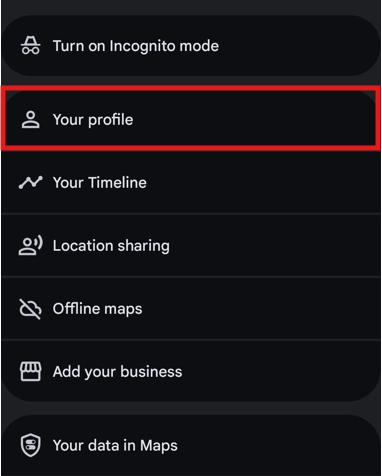
Step 4: Find Your Review: Tap on the “Reviews” tab and scroll down until you find the specific review you want to fix.
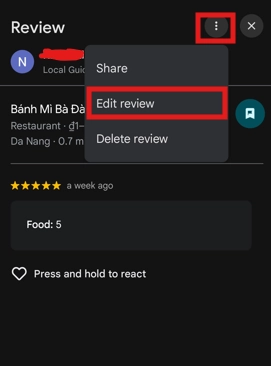
Step 5: Edit and Add
Looking For Google Reviews? Claim your Discount Below
 8,492 people used this service in the past 7 days

- Tap the Three Dots (…) next to your review.
- Select “Edit review” from the menu.
- Tap “Add photos”, choose your image, and hit “Post” again.
Why You Should Care (The Hidden SEO Power)
If you are just a customer, adding photos helps your community. But if you are a business owner, you need to understand that visual reviews are SEO gold.
For Customers
Your review is significantly more helpful with visual context. Research shows that conversion rates increase by over 100% when shoppers engage with user-generated photos compared to text-only reviews.
By adding a photo, you are essentially “verifying” your review, proving you were actually there.
For Business Owners
Google’s algorithm loves engagement. Google review images keep users on your profile longer (a metric known as “Dwell Time”).
Research indicates that 60% of consumers perceive user-generated photos as three times more authentic and trustworthy than brand-created content.
The longer they look at photos, the more Google sees your business as a relevant, high-quality result.
- Ranking Signal: Reviews with photos often stick to the top of the “Most Relevant” sort list longer than text-only reviews.
- Trust: 60% of consumers view user-generated photos as 3x more authentic than brand-created content.
(Want to get more of these high-value reviews? Read our guide on [How to Ask for Google Reviews Without Being Pushy]).
Best Practices: What Kind of Photos Should You Upload?
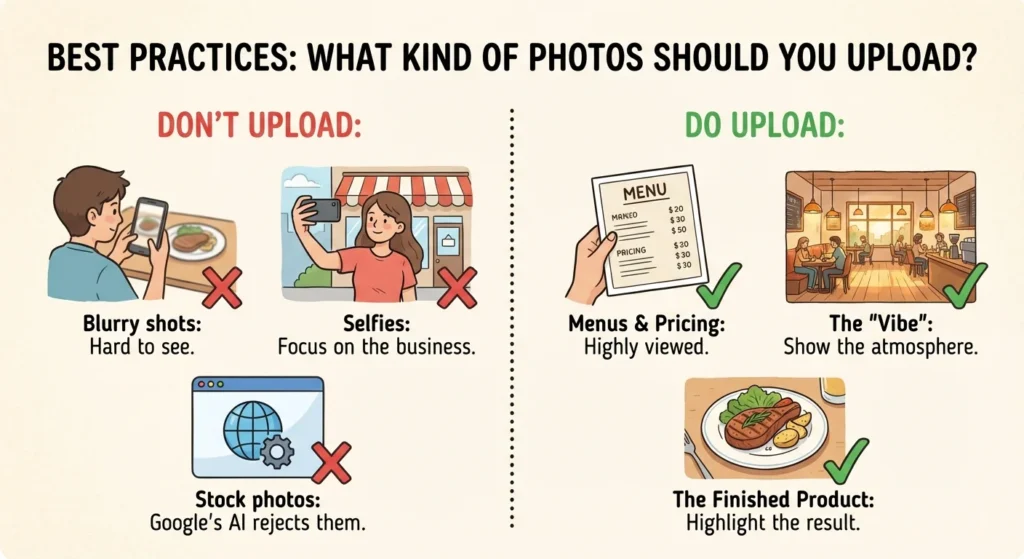
Not all photos are helpful. To ensure your Google review image gets seen (and isn’t filtered by Google’s AI), follow these standards:
- Don’t Upload:
- Blurry shots: If we can’t tell what it is, it looks spammy.
- Selfies: Unless the product is on you (like a haircut), focus on the business, not your face.
- Stock photos: Google’s AI can detect stock imagery and will likely reject the review.
- Do Upload:
- Menus & Pricing: These are the most viewed photos for restaurants.
- The “Vibe”: Interior shots that help future customers understand the atmosphere (quiet study spot vs. loud party bar).
- The Finished Product: Close-ups of the repair job, the landscaping, or the plated food.
Can Business Owners Add Photos to Customer Reviews?
This is a common point of confusion. The Answer: No. You cannot upload a photo directly into a customer’s review to make it look like they posted it. That would be misleading.
The Workaround: You can reply to the review. While you can’t attach a photo to your text reply, you can upload a “Photo Update” to your own Google Business Profile and reference the customer in the caption (e.g., “Here is a photo of the deck we built for John’s project!”).
This links the visual work to the happy sentiment.
(If you need help managing these responses professionally, check out our [Reputation Management] services).
Conclusion
Visuals are the new currency of trust. In a world of AI-generated text, a real photo from a real smartphone is the ultimate proof of quality.
Next time you have a 5-star experience, don’t just type it – snap it. It takes five extra seconds, but it makes your review infinitely more valuable. And if you are a business owner, start encouraging your best clients to show, not just tell.
Frequently Asked Questions (FAQ)
How do I remove a photo from my Google review?
If you uploaded the wrong picture, go to Your Profile > Reviews > Edit Review. You will see the photos attached; usually, there is an “X” or a trash icon on the thumbnail to delete it.
Why isn’t my photo showing up on the Google review?
Google has a strict filter for images. If your photo is blurry, violates copyright, or looks like spam, it may be rejected. It can also take up to 24 hours for photos to appear publicly.
Can I add a video to a Google review?
Yes! Google allows video uploads (usually up to 30 seconds). Video reviews are incredibly powerful, driving 157% more organic traffic to pages that feature them.
Does adding a photo improve my Local Guide level?
Yes. Google gamifies contributions. You earn more points for a review with a photo than for a text-only review, helping you level up faster in the Local Guides program.