How to Create a Google Business Profile: Easy Set Up Guide
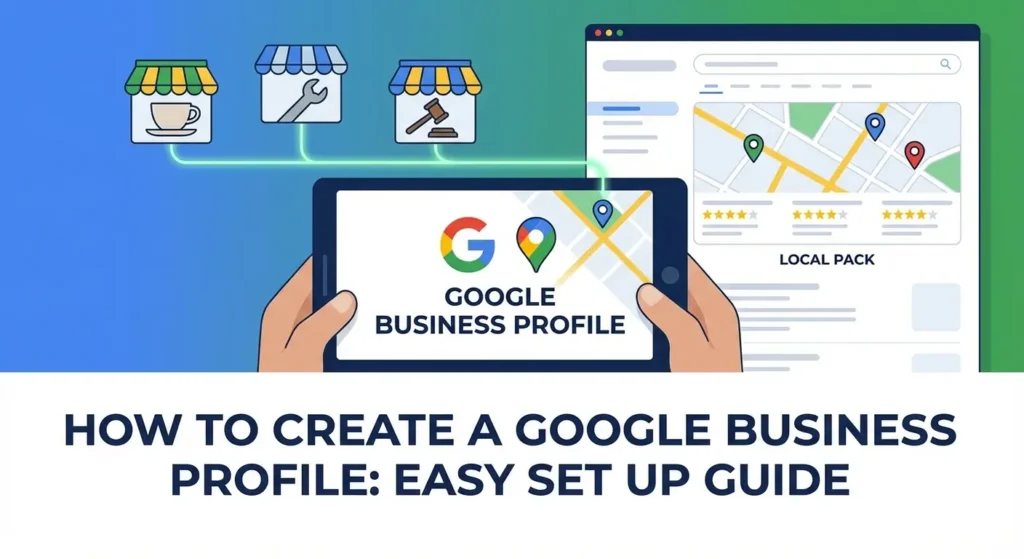
Learning how to create a google business profile is the single most effective way to get your local business found online. Whether you run a coffee shop, a plumbing service, or a law firm, this profile is your digital storefront.
Think about the last time you looked for a service. You probably didn’t scroll through ten pages of search results.
You likely looked at the “Local Pack”, that map at the top of Google showing three local businesses, their star ratings, and their hours. If your business isn’t there, you are invisible to nearly half of all local customers.
This guide will walk you through exactly how to create a google business page, verify your location, and optimize it to rank higher. We will also cover the most common stumbling block, verification, and what to do once your profile is live to build a reputation that drives sales.
Table of Contents
What is a Google Business Profile and Why Do You Need It?
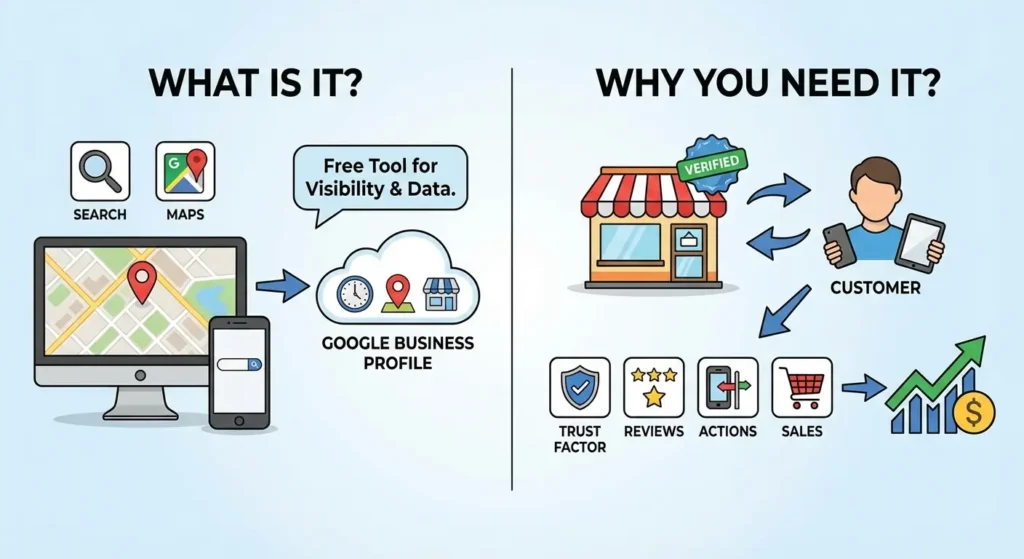
A Google Business Profile (formerly known as Google My Business) is a free tool that allows business owners to manage how they appear across Google products, specifically Search and Maps.
When you set up google business profile correctly, you aren’t just adding a pin to a map. You are giving Google specific data about what you do, where you are, and when you are open. In return, Google rewards verified businesses with higher visibility.
The Trust Factor
Consumers trust Google. A verified profile with accurate information and photos signals to customers that your business is legitimate.
In fact, businesses with complete profiles are considered twice as reputable by users compared to those with missing information.
This credibility is directly tied to your sales. A profile allows customers to call you, visit your website, or request directions with a single click. Furthermore, it is the only way to collect and display Google Reviews, which are critical for SEO and conversion.
Read more about the benefits of Google Reviews for SEO and Sales here.
Preparation: Before You Start the Setup
Many business owners rush to the signup page immediately, but a little preparation can save you from getting suspended later.
Google is very strict about data quality. If the information you enter during setup doesn’t match what Google finds elsewhere on the internet, it triggers red flags.
1. Create a Dedicated Business Google Account
While you can use your personal Gmail account, it is rarely a good idea. If you ever hire an agency or sell the business, handing over your personal email is messy.
Create a standard Google account specifically for your business (e.g., [email protected]). This keeps your notifications separate and ensures you don’t miss critical emails about verification codes or new reviews.
2. Standardize Your NAP (Name, Address, Phone)
In the SEO world, we call this NAP Consistency. Before you type a single letter into Google, decide exactly how your business name and address should appear.
If your business is at “123 Main Street, Suite B,” you must write it exactly that way every time. Do not write “St.” on your website, “Street” on Facebook, and “Ste B” on Google. These small discrepancies confuse Google’s algorithm and can hurt your rankings.
Step-by-Step: How to Create a Google Business Profile
Follow these steps carefully. The interface changes slightly every few months, but the core process remains the same.
1. Visit the Google Business Profile Gateway
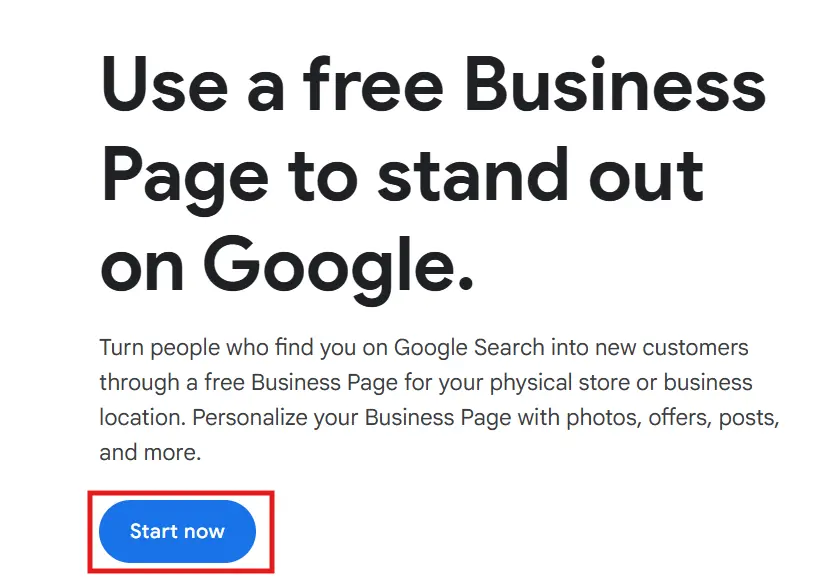
To begin, go to the official Google Business Profile Manager. Click on the Start Now button. You will be prompted to sign in with the Google account you created in the preparation step.
2. Search for Your Business
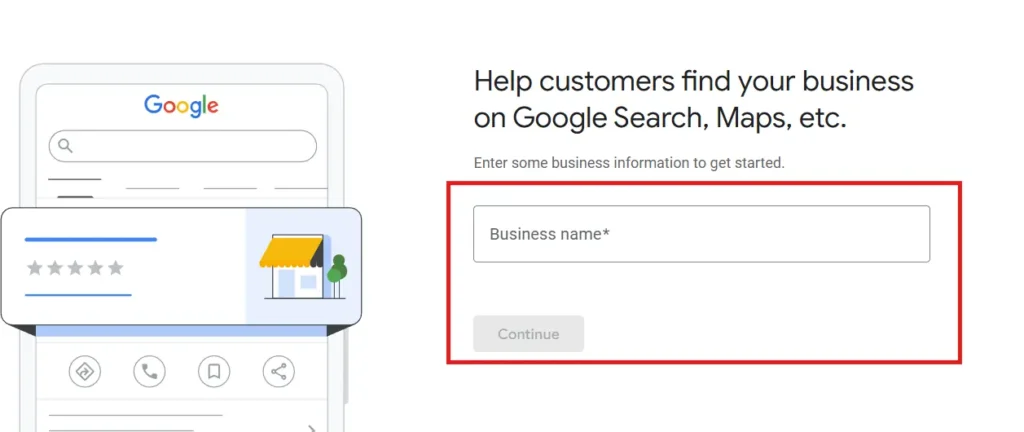
Google will ask you to enter your business name. This is a check to see if a profile already exists.
- If your business appears: It means a profile was auto-generated by Google or created by a previous owner. You will need to click “Request Access.”
- If your business does not appear: This is good news. Click on the option that says Create a business with this name.
3. Select Your Business Type (Location vs. Service Area)
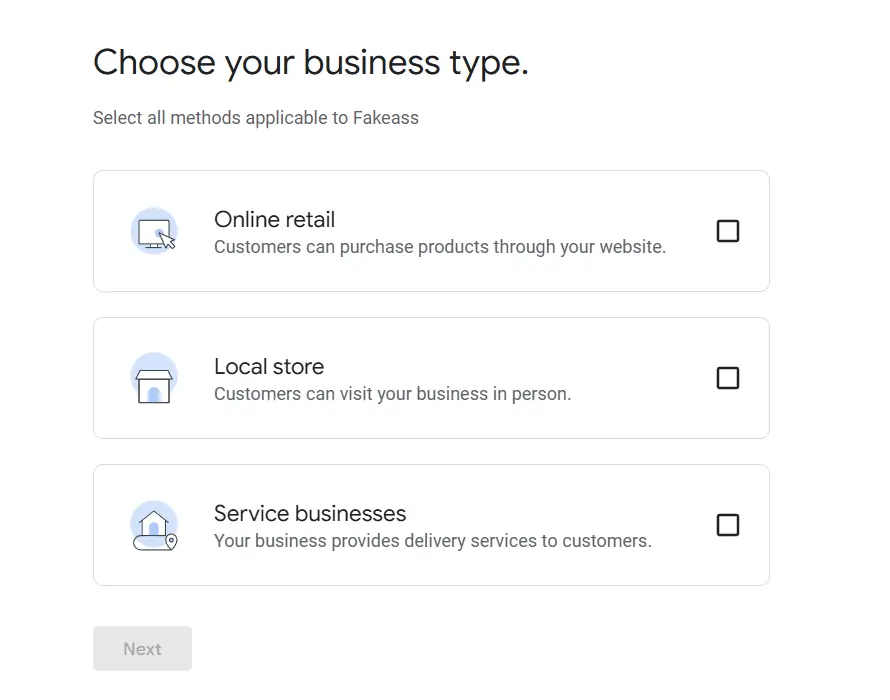
Google distinguishes between two main types of local businesses. Choosing the wrong one is a common error when setting up a google business page.
Option A: Hybrid or Physical Location If you have a shop, office, or restaurant where customers come to you during business hours, select Yes when asked if you want to add a location customers can visit. You will then enter your specific street address.
Option B: Service Area Business (SAB) If you are a plumber, electrician, cleaner, or consultant who goes to the client’s location, select No.
You do not need to display a physical address on Maps (which protects your privacy if you work from home). Instead, you will define a “Service Area” by listing the cities or zip codes you serve.
4. Add Contact Details
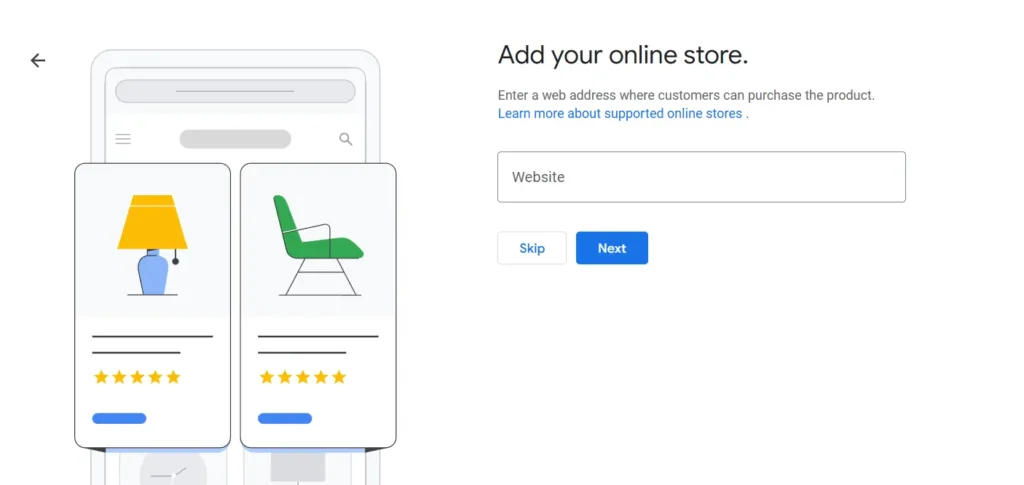
Enter your business phone number and website URL.
Tip: If you do not have a website yet, Google allows you to create a simple, free one based on your profile information. However, for long-term branding, we strongly recommend buying your own domain and building a proper site.
5. Choose Your Business Name and Primary Category
This step is critical for your ranking, but it is also where many people break the rules.
Looking For Google Reviews? Claim your Discount Below
 8,492 people used this service in the past 7 days

Business Name: Enter your real-world business name. Do not add keywords. If your business is named “Apex Plumbing,” do not enter “Apex Plumbing – Best Cheap Plumber in Chicago.” This is called keyword stuffing, and it is the fastest way to get your listing suspended.
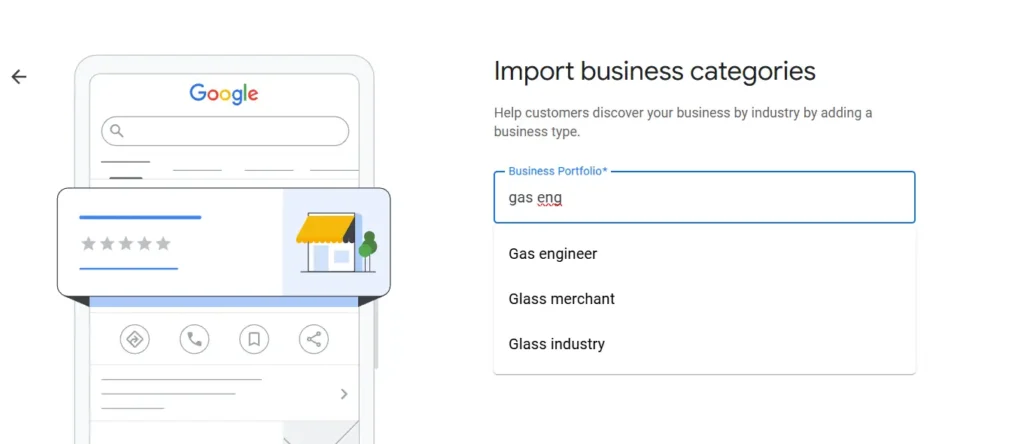
Business Category: You must select a primary category. This is the main way Google knows who to show your listing to. Be as specific as possible.
If you run a pizza place, choose “Pizza Restaurant,” not just “Restaurant.” You can add secondary categories later (e.g., “Pizza Delivery”), but the primary one carries the most weight.
6. Verify Your Business (The Critical Step)
This is the most important part of how to create a google business profile. Your profile will not be visible to the public until you verify it.
Google uses several methods to prove you are a real business at the location you claimed. You do not get to choose the method; Google assigns one based on your “trust score.”
Video Verification (Most Common)
Recently, Google has shifted almost entirely to video verification for new profiles. You will be asked to record a continuous video on your smartphone. You need to capture three things in one take:
- Location: Your current location (captured via GPS).
- Equipment: Your work vehicle, tools, or branded marketing materials.
- Proof of Management: Unlocking the front door, accessing a POS system, or showing business registration documents.
Postcard Verification
This is the traditional method. Google sends a postcard with a 5-digit code to your address. It usually arrives within 5 to 14 days.
Do not edit your profile name, address, or category while waiting for the postcard. Any change will kill the code, and the postcard you receive will be invalid.
Phone or Email Verification
This is rare and usually reserved for businesses that Google already trusts or has data on. If you see this option, take it immediately, it is instant.
Troubleshooting: If your verification fails or your listing gets flagged immediately after creation, do not panic. It happens often to legitimate businesses. You may need to file a reinstatement appeal.
Learn how to fix a suspended Google Business Profile here.
Optimizing Your Profile (Don’t Just Set It, Forget It)
Once you are verified, you have access to the dashboard. Now you need to fill in the blanks. A complete profile ranks higher than an empty one.
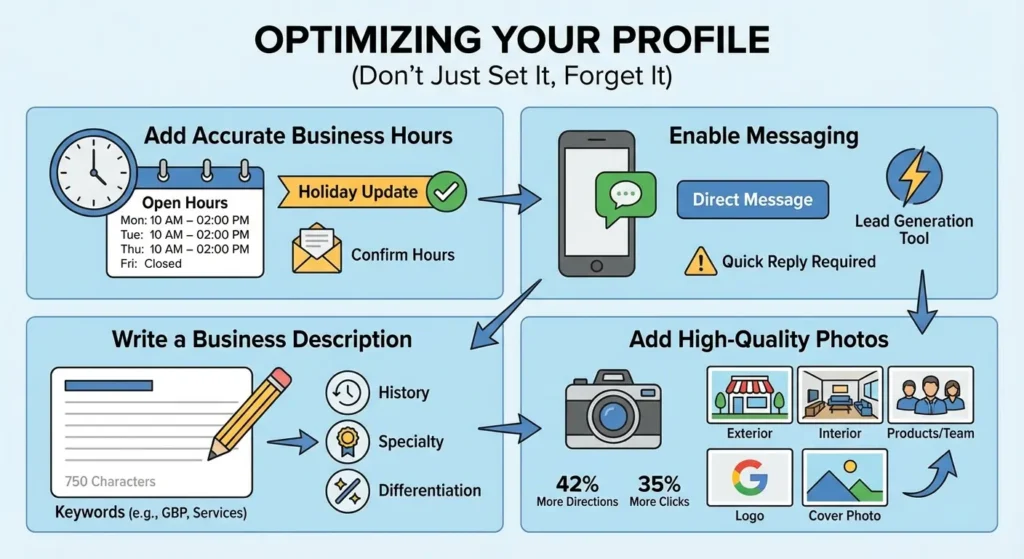
Add Accurate Business Hours
List your regular hours. Be sure to update these for holidays. Google will often send you an email before major holidays asking you to confirm your hours; responding to these prompts shows Google you are active.
Enable Messaging
You can turn on a chat feature that allows customers to message you directly from Google Maps. This is a powerful lead generation tool.
However, only turn this on if you can reply quickly. Google tracks your response time, and slow responses can hurt your visibility.
Write a Business Description
You have 750 characters to describe your business. This is a great place to use your related keywords like gbp google setup or specific service names.
Write naturally for a human reader. Mention your history, your specialty, and what makes you different from competitors.
Add High-Quality Photos
Photos are a conversion factor. Profiles with photos receive 42% more requests for directions and 35% more click-throughs to their websites.
- Exterior: Help people find your building.
- Interior: Show the vibe of your office or store.
- Products/Team: Humanize your brand.
- Logo and Cover Photo: Ensure these are high resolution.
Conclusion
Knowing how to create a google business profile is just the first step in your local SEO journey. The real work begins after verification. Your goal is to keep the profile alive. Post updates, add new photos regularly, and most importantly, stay on top of your reviews.
A stagnant profile drops in rankings, but an active one climbs. Start today, get verified, and if you need a boost to get those essential first stars, remember that Reputation Manage is here to help you build the trust your business deserves.
Frequently Asked Questions
Is creating a Google Business Profile free?
Yes, setting up a google business page is 100% free. If anyone calls you claiming you need to pay a fee to “keep your listing active” or “claim your spot,” they are a scammer. You only pay Google if you choose to run Google Ads.
Can I hide my address on my Google Business Profile?
Yes. If you are a Service Area Business (like a plumber or consultant working from home), you can hide your specific street address.
Your profile will show a service radius on the map instead of a specific pin. This keeps your home address private while still allowing you to rank in local search results.
What if someone else has already claimed my business profile?
This is common. If you try to create a profile and Google says it is already owned, you must click “Request Access.” Google will email the current owner. If they do not reply within 3 to 7 days, Google will often release the profile to you so you can verify it yourself.
How do I verify my business without a postcard?
Google determines the verification method, not you. However, you can increase your chances of getting “easier” verification methods (like phone or email) by ensuring your business website is indexed and your business phone number is listed on other reputable directories before you start the gbp google setup process. Currently, video verification is the most common method for new profiles.